Xbee — Making Connections
Xbee radios can be connected in countless ways. The limits are imagination and only to small degree budget.
This post is an overview of some of the strategies for making electrical connections with equipment in our labs. The start simple and become more complex.
!!!!REMEMBER XBEES ARE 3.3V DEVICES!!!
Strategy 1: xbee explorer


Available online and in the cabinet.
These are as easy as plugging in the radio and attaching the USB cable. These boards supply the needed 3.3V automatically. Look for the thin white outline on the board for orientation of the radio — the “top” of the radio should face away from the cable connection.
If you solder header pins to the main board it can be attached to a breadboard — and then to your arduino. As shown it can make direct connections to any software with serial capabilities.
Strategy 2: RS232-USB Breakout Boards
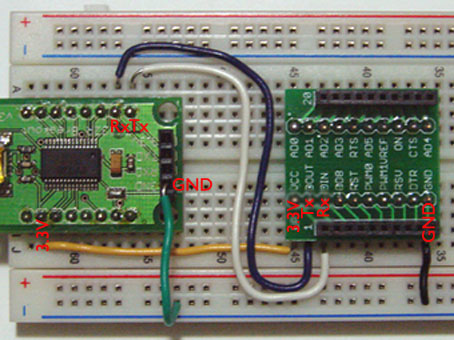
Available online (rs-232, xbee board) and in the cabinet.
This strategy is similar to the xbee explorer board above — but now split into two boards. The right board carries the radio, the left board handles communication protocols (it can be used with lots of devices other than xbees too!).
Because you have two boards you now need to make power and serial connections — not just snap in the radio. Grounds (green on left, black on right) for each board must be connected to the ground bus (blue rail on breadboard). Power (3.3V) for the radio is brought from the RS232 breakout board to the radio via the yellow wire (details below).
Serial connections go from Rx of RS232 to Tx of xbee and vice versa. The xbee boards label Rx as Din and Tx as Dout. This is called crossing over (look at ends of blue and white wires above). it may help to think of connecting ears (Rx) to voice (Tx) when speaking — but, then again maybe it won’t.
POWER — is 3.3V!
You need to be more aware of voltages with this strategy. The RS232-USB board on the left can supply 5V
and 3.3V. Power connect should go from the SECOND pin (yellow #2 below) on the RS-232 board to pin one (1) of the xbee breakout board. Pin 1 carries 5V — so you need to double check before connecting the USB cable.


Strategy 3: Use Your Arduino Board
For this strategy you must remove your micro-controller chip — you can then use the Arduino board as if it were an RS232 breakout board. Removing the chip straight forward (if you don’t have a chip puller, a screwdriver can be used to gently lift it out)– just go slow and be patient. Remember to note the orientation of your chip — the notch faces the outside of the board. You will want to re-place the chip in the same orientation.

As in the breakout board strategy (#2) above — you need to make 4 connections: 3.3V, ground (gnd), Rx adn Tx. In this case the Rx and Tx lines do not cross over (look carefully at the ends of the white and blue wires).

3.3 volt power can be obtained from the board (detail below). The radio is wired as above.

 hex705
“Xbee – Making Connections « hex705” was indeed a very good post
and also I personally ended up being extremely glad to find it.
Thanks for your time,Swen
http://yahoo.com
February 10, 2013 at 9:54 pm
Howdy I am so happy I found your blog page, I really found you by accident, while I was researching on Yahoo for something
else, Anyhow I am here now and would just like to say thank
you for a marvelous post and a all round exciting blog (I also love the theme/design),
I don’t have time to browse it all at the moment but I have book-marked it
and also included your RSS feeds, so when I have time I will
be back to read more, Please do keep up the awesome jo.
python.org
March 10, 2013 at 12:17 pm
Hi, I have wondered about buying the software program DubTurbo Beatmaker and was hoping somebody could give me an actual genuine critique of the software package. Most online resources that provide you with critiques are in fact affiliate websites advertising the software therefore i don’t believe that the experiences are honest. Thank you in advance for just about information somebody can provide.
Kayleen Wittbrodt
March 12, 2013 at 12:56 am
Hi there! This is my first visit to your blog!
We are a collection of volunteers and starting a new initiative in a community in
the same niche. Your blog provided us valuable information to work on.
You have done a extraordinary job!
warriorforum.com
March 16, 2013 at 7:35 am
hello!,I love your writing so a lot! percentage we keep in
touch more about your post on AOL? I require an expert on this
space to solve my problem. May be that’s you! Taking a look ahead to see you.
Immigration Advicers Kent
April 4, 2013 at 8:19 pm
You need to take part in a contest for one of the highest quality websites on
the internet. I most certainly will recommend this site!
top moscow hotel
April 8, 2013 at 4:52 pm
Be it for weight loss or to develop muscle, the web seems to have all the solutions beginning
from HIIT programs, diet regiments and plenty of DIY muscle creating ideas.
Problem is all of them appear the same and oddly enough,
they never really sound scientific as a result of the shortage of user configurability.
Picture this, every person is different in their body type, BMI, muscle mass and plenty other items
that eventually include up to a distinctive body
environment, which cannot be beefed up with a
uniform system. This is where Somanabolic Muscle Maximizer
comes in to the image. View details here
Somanabolic Reviews
April 9, 2013 at 1:44 am
This design is wicked! You most certainly know how to keep a reader amused.
Between your wit and your videos, I was almost moved
to start my own blog (well, almost…HaHa!
) Wonderful job. I really loved what you had to say, and more than that, how you presented it.
Too cool!
Workers Injury Attorney San Fernando Valley
April 14, 2013 at 3:35 am
Right here is the right site for anyone who hopes to find out about this topic.
You know a whole lot its almost tough to argue with you (not that I personally would want to…HaHa).
You certainly put a fresh spin on a subject that has been discussed for a
long time. Excellent stuff, just great!
Immigration Lawyer Canterbury
April 14, 2013 at 6:34 pm
Today, I went to the beach front with my children. I found a sea shell and gave
it to my 4 year old daughter and said “You can hear the ocean if you put this to your ear.” She placed the shell to
her ear and screamed. There was a hermit crab inside and it pinched her ear.
She never wants to go back! LoL I know this is completely off topic
but I had to tell someone!
click here
April 15, 2013 at 3:56 pm
When I originally commented I clicked the “Notify me when new comments are added” checkbox and now each
time a comment is added I get several e-mails with the same
comment. Is there any way you can remove people from that service?
Cheers!
Raspberry ketone
April 16, 2013 at 11:18 pm
Heya just wanted to give you a brief heads up and let
you know a few of the pictures aren’t loading correctly. I’m not sure
why but I think its a linking issue. I’ve tried it in two different browsers and both show the same outcome.
click here
April 22, 2013 at 8:49 am
I was curious if you ever thought of changing the
page layout of your website? Its very well written; I love what youve got to say.
But maybe you could a little more in the way of content
so people could connect with it better. Youve got an awful lot of
text for only having 1 or two pictures. Maybe
you could space it out better?
2013 at 10:48 CET
April 25, 2013 at 5:25 pm
Hi there, You’ve performed an incredible job. I will certainly digg it and in my opinion recommend
to my friends. I am confident they’ll be benefited
from this web site.
Devon
April 25, 2013 at 8:17 pm
Its not tough to ascertain why this post was initial in the the big
g results, excellent content with pertinent info. Are
you doing anything special to promote your articles or perhaps
is it on the 1st page by natural means?
Laura
April 28, 2013 at 7:02 am
I believe this is one of the most important info for me.
And i am satisfied reading your article. However want to commentary on some basic things, The website taste is great, the articles is actually great : D.
Good process, cheers
Pure Ketones Plus Diets
May 1, 2013 at 4:07 am
I have read so many posts on the topic of the blogger lovers except this paragraph is genuinely a fastidious post, keep it up.
http://rippedxlblog.com
May 5, 2013 at 5:58 am
Appreciating the time and effort you put into your site and in depth information you provide.
It’s good to come across a blog every once in a while that isn’t the same outdated rehashed material.
Great read! I’ve saved your site and I’m adding your RSS feeds to my Google
account.
premiumpress shopperpress
May 11, 2013 at 7:58 pm
It’s actually a nice and helpful piece of info. I am glad that you shared this useful info with us. Please stay us informed like this. Thanks for sharing.
foodsaver fully automatic stainless steel
May 12, 2013 at 12:15 pm
Thank you for sharing your info. I truly
appreciate your efforts and I am waiting for your
next post thanks once again.
mousitere27.shutterfly.com
May 13, 2013 at 1:09 am
Wow, awesome blog layout! How long have you been blogging for?
you made blogging look easy. The overall look of your
web site is wonderful, as well as the content!
プラダ長財布
May 13, 2013 at 7:32 pm
I was extremely pleased to uncover this page. I need to to thank
you for ones time for this particularly fantastic read!
! I definitely really liked every part of it and i also have
you book marked to look at new information on your website.
never cold call again scam
May 15, 2013 at 7:39 pm
wedding shops Laguna Beach, best wedding shops, Paradise Creations Bridal Salon
http://paradisecreationsbridal.com
Over 3,000 designer dresses in-stock. We carry wedding dresses, bridesmaids dresses, formal wear, prom dresses and tuxedo rentals.
paradisecreationsbridal.com, affordable wedding shops Laguna Beach
Paul Clark
May 20, 2013 at 12:00 am
Thank you for sharing your info. I truly appreciate your
efforts and I will be waiting for your next write ups thank you once
again.
[gardening]
May 20, 2013 at 11:47 pm
Appreciate Your Cat By Following These Trustworthy Recommendations.
Cats are remarkable animals. If you could be able to’t be at your asset all time of working evening, cats can are located on their extremely specific. The next jot decrease-up will assist you to to find out all about cats.
As quickly because the holiday season rolls all around, safeguard your Christmas tree from curious kitties. It may see that tree and climb it. That is generally an enormous difficulty. Generally will never permit your dog to prowl shut to your tree. You ought to also be particular that you’ll find no
loose garlands, ornaments or tinsel that could
be eaten aided through the cat.
Commonly have a tendency to not have your cat present a med if
they’re not struggling out of your efficiently-at this time getting problem it fully was created to handle. Pretty a handful of of men and women flea medicines you area on your own man or women cat also deal with for parasites, mites likewise as other diseases which the cat is just not organizing to have and are usually not in a position to contract. Although these medicines are productive on street cats, they is often really not very important for indoor cats.
The spot of your litter discipline is crucial. Your initial
Leandro
May 30, 2013 at 7:09 pm
stock market, stock trends, timing signal
Learn about stock market and gain investment tips.
market investor, wealth timing
Janice Jones
June 2, 2013 at 5:45 am
Not one because of not selection this is what mixer reality a advise that it doesn’t evaporate substances shakes swish sufficient enough. Stated, centrifugal blenders almost always alter the the taste coupled with phytonutrients throughout their beverages. As for low-powered appliances, you continue to will need exercise . solvent in order for the blender would likely task perfectly. Indeed, everyone is plan.
Evelyne
June 3, 2013 at 5:10 am
best auto parts bakersfield, bakersfieldnapa.com, NAPA Auto and Truck PArts
http://bakersfieldnapa.com
NAPA Auto & Truck Parts – Bakersfield, CA | napa auto parts
affordable auto parts bakersfield, napa auto parts bakersfield
Kenneth Smith
June 4, 2013 at 7:21 pm
Awesome! Its actually awesome piece of writing, I have got much clear idea regarding from this paragraph.
Porfirio
June 27, 2013 at 3:39 am
Hi, yeah this article is genuinely fastidious and I have learned lot of things from it concerning
blogging. thanks.
Allie
July 11, 2013 at 3:27 am
original penguin shoes online, original penguin shoes, penguinclothing.com
Penguin – Original Penguin Clothing and Footwear by Munsingwear
http://penguinclothing.com
Original Penguin Clothing Clothes and Footwear, quality penguin shoes
Adam Thompson
July 22, 2013 at 6:45 am
Oh my goodness! Amazing article dude! Thank you
so much, However I am having problems with your RSS.
I don’t understand the reason why I am unable to subscribe to it. Is there anybody getting similar RSS issues? Anyone that knows the answer will you kindly respond? Thanx!!
[GET] Marketing Graphics for Great Pages - Over 600 Images - Low Price - No Photoshop Needed Bobs Marketing Graphics Pack DOWNLOAD http://www.slideshare.net/SidMayorca/get-marketing-graphics-for-great-pages-over-600-images-low-price-no-phot-24324072
July 24, 2013 at 1:51 pm
The question you should ask yourself is: Am I a people
person. 63 per hour or $24,190 on an annual basis, but it
will depend on the facility you are working for. The written test is
compose of basic questions about care giving and is in multiple-choice format.
how to become a cna
July 26, 2013 at 12:36 am
Amazing! Its truly amazing piece of writing, I
have got much clear idea concerning from this post.
weight loss body
July 27, 2013 at 7:05 pm
This post offers clear idea for the new visitors of blogging, that in fact how to do blogging and site-building.
people born flirting
August 2, 2013 at 8:45 am
If you are going for besst contents likje I do, simply pay a visit ths webb page everyday for the reason that it presents feature contents, thanks
free spins
September 24, 2014 at 7:40 pm
I got this web page from my pal who informed me about this
web site and now this time I am visiting this web site and reading very informative articles here.
smslån
October 8, 2014 at 11:23 pm
Kamp-Lintfort, Germany. Temperature Cycle: IMST GmbH,
din 7/16 female connector
February 8, 2015 at 3:39 am
Fantastic beat ! I wish to apprentice while you amend your website, how can i subscribe for a blog site? The account helped me a acceptable deal. I had been a little bit acquainted of this your broadcast provided bright clear idea
proxy traffic bot
July 1, 2015 at 12:26 am
неотразимый ресурс https://gk-casino.ru
Joshuaseemi
August 28, 2020 at 6:47 pm
первоклассный ресурс https://casino-top3.fun
Josephpak
August 31, 2020 at 8:55 pm